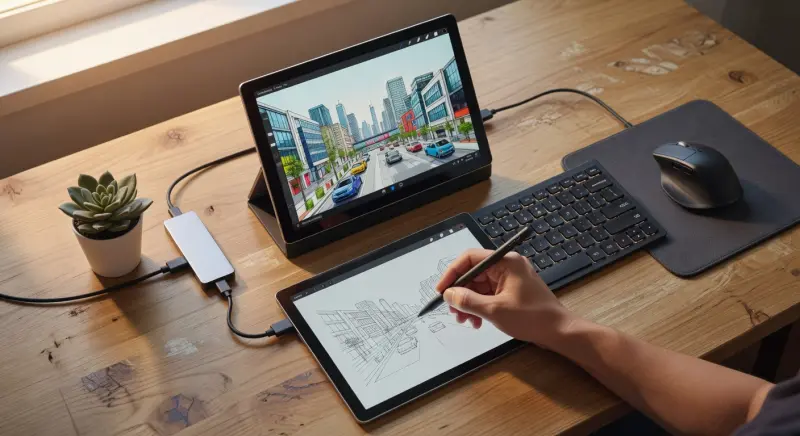
Transforming a Surface Pro into a full-fledged desktop replacement is an achievable goal for many users seeking versatility and portability in their tech setup. The Surface Pro, known for its sleek design and powerful performance, offers a unique combination of tablet convenience and laptop functionality. With the right accessories and configurations, it can seamlessly transition into a desktop workstation, catering to professionals, students, and creatives alike who need a robust system without sacrificing mobility.
For those who spend long hours at a desk, the idea of consolidating devices into a single, powerful unit is incredibly appealing. Surface users find that setting up their device as a desktop replacement not only declutters their workspace but also enhances productivity through a familiar, Windows-based environment. This guide explores the essential steps and tools needed to make this transformation, ensuring that the Surface Pro meets the demands of a traditional desktop setup.
Whether tackling intensive software, managing multiple applications, or simply aiming for ergonomic comfort, the process of converting a Surface Pro into a desktop powerhouse is straightforward. Below, key points highlight why this setup is a game-changer for many, followed by detailed sections on how to achieve it.
- Versatility: The Surface Pro adapts to both mobile and stationary work environments with ease.
- Compact Design: Its slim form factor saves desk space compared to traditional desktops.
- Powerful Performance: Equipped with robust hardware, it handles demanding tasks efficiently.
- Customizable Setup: A wide range of accessories allows users to tailor their workstation.
- Cost-Effective: Combining tablet, laptop, and desktop into one device reduces the need for multiple gadgets.
- Windows Ecosystem: Seamless integration with Windows software ensures a desktop-like experience.
Choosing the Right Surface Pro Model
Selecting the appropriate Surface Pro model is the foundational step in creating a desktop replacement. Different models offer varying levels of performance, storage, and connectivity options, which can significantly impact the user experience. Tech reviewers recommend assessing specific needs—such as processing power for video editing or multitasking capabilities for business applications—before making a decision. For those unsure about specifications, exploring detailed comparisons on resources like Microsoft Surface can provide valuable insights into which model suits a desktop setup best.
Surface users find that models with higher RAM and faster processors are more capable of handling desktop-level workloads. Additionally, opting for a device with sufficient storage ensures that files, applications, and software updates do not hinder performance. Connectivity is another critical factor; models with USB-C or Thunderbolt ports offer greater flexibility for connecting external monitors and peripherals, essential for a desktop environment.
Essential Accessories for a Desktop Setup
To transform a Surface Pro into a desktop replacement, investing in the right accessories is non-negotiable. A docking station, for instance, serves as the central hub for connecting multiple peripherals like monitors, keyboards, and external storage devices. Productivity enthusiasts note that a high-quality docking solution can replicate the port availability of a traditional desktop, making transitions between mobile and stationary work seamless. For a deeper dive into compatible options, the accessories category offers a wealth of recommendations tailored for Surface devices.
Beyond docking stations, an external monitor is crucial for expanding screen real estate, especially for multitasking or design work. A full-sized keyboard and mouse further enhance comfort and efficiency, mimicking the feel of a desktop setup. Surface users often pair these with an adjustable stand or mount to position the device at eye level, reducing strain during extended use. Lastly, external storage or a high-capacity SSD can address any storage limitations, ensuring all files are readily accessible.
Optimizing the Workspace for Productivity
Creating an ergonomic and efficient workspace is vital when setting up a Surface Pro as a desktop replacement. Positioning the device or external monitor at the correct height prevents neck and back strain, while an adjustable chair supports long hours of work. Productivity enthusiasts note that proper lighting—preferably natural or soft desk lamps—reduces eye fatigue, enhancing focus during intensive tasks.
Organizing cables with management solutions keeps the desk clutter-free, contributing to a distraction-free environment. Surface users find that integrating a second monitor or even a dual-monitor setup can significantly boost efficiency, allowing for simultaneous application use. For additional insights on maximizing workspace potential, the productivity category provides tips and tricks tailored to Surface setups.
Configuring Software and Settings
Software configuration plays a pivotal role in ensuring the Surface Pro operates as a desktop replacement. Customizing the Windows environment to suit specific workflows can make a substantial difference in usability. Tech reviewers recommend enabling features like virtual desktops to manage multiple projects efficiently. For those new to Windows customization, resources such as Windows 11 Inside Out offer in-depth guidance on optimizing settings for power users.
Installing necessary software, such as office suites, design tools, or development environments, ensures the device meets professional demands. Surface users find that adjusting display settings for external monitors—such as resolution and scaling—creates a seamless visual experience. Additionally, syncing cloud services like OneDrive keeps files accessible across devices, replicating the convenience of a traditional desktop system. Keeping drivers and firmware updated also prevents compatibility issues with peripherals, maintaining smooth operation.
Connectivity and Performance Tips
Maximizing connectivity and performance is the final step in setting up a Surface Pro as a desktop replacement. Utilizing high-speed internet, whether through Ethernet via a dock or a reliable Wi-Fi connection, ensures uninterrupted workflows, especially for cloud-based tasks. Tech reviewers often highlight the importance of testing connection stability, as lag can disrupt productivity in a desktop environment.
For performance, closing unnecessary background applications frees up system resources, allowing the Surface Pro to handle intensive tasks without slowdowns. Surface users find that external cooling solutions, such as laptop cooling pads, can prevent overheating during prolonged use. Additionally, leveraging insights from tech publications like The Verge can provide updates on performance optimization trends for hybrid devices like the Surface Pro. Regularly monitoring system health through built-in Windows tools also helps maintain peak efficiency over time.
Frequently Asked Questions
Can a Surface Pro fully replace a desktop computer?
A Surface Pro can indeed serve as a desktop replacement for many users, depending on their needs. With the right accessories, such as a docking station and external monitor, it offers comparable functionality to a traditional desktop. Surface users find that it excels in tasks like document editing, web browsing, and even moderate graphic design. However, for highly specialized tasks like 3D rendering or gaming, a dedicated desktop with superior graphics capabilities might still be necessary. Assessing individual workload requirements is key to determining if this setup suffices. Consulting hardware benchmarks can also provide clarity on performance limits.
What accessories are must-haves for a desktop setup with a Surface Pro?
Essential accessories for transforming a Surface Pro into a desktop include a docking station, external monitor, full-sized keyboard, and mouse. A docking station expands connectivity options, allowing multiple peripherals to be connected simultaneously. An external monitor increases screen space, crucial for multitasking. Productivity enthusiasts note that a comfortable keyboard and mouse setup enhances typing and navigation efficiency. Additionally, an adjustable stand or mount can improve ergonomics. These components collectively create a desktop-like experience tailored to long-term use.
How does a Surface Pro handle multiple monitors?
A Surface Pro can support multiple monitors, typically through a docking station or USB-C/Thunderbolt ports, depending on the model. This setup allows users to extend their display across two or more screens, boosting productivity for tasks like coding or design. Surface users find that configuring display settings in Windows ensures smooth integration of additional monitors. Performance may vary based on the device's hardware, so checking specifications is advisable. For intensive multi-monitor use, ensuring adequate cooling and power supply is also recommended. Tech reviewers suggest testing different configurations to find the optimal setup.
Is a Surface Pro powerful enough for professional software?
Many Surface Pro models are equipped with hardware capable of running professional software like Adobe Creative Suite, Microsoft Office, or development tools. Higher-end configurations with faster processors and more RAM handle these applications effectively. Surface users find that for tasks like video editing or data analysis, choosing a model with enhanced specs is crucial. However, for extremely demanding workloads, performance may not match high-end desktops. Benchmark comparisons can help gauge suitability for specific software. Regular updates to drivers and software also ensure compatibility and efficiency.
How can users ensure ergonomic comfort with a Surface Pro desktop setup?
Ergonomic comfort with a Surface Pro desktop setup starts with positioning the screen at eye level using a stand or mount. An adjustable chair that supports the back and aligns with desk height is equally important. Surface users find that placing the keyboard and mouse at a comfortable distance reduces wrist strain. Proper lighting minimizes eye fatigue during long sessions. Taking regular breaks to stretch also prevents physical discomfort. Productivity enthusiasts note that small adjustments, like monitor angle, can make a significant difference over time.
Final Thoughts
Setting up a Surface Pro as a desktop replacement offers a versatile, space-saving solution for those seeking to consolidate their tech into a single, powerful device. With the right model, accessories, and configurations, it can meet the demands of a traditional desktop while retaining the portability that Surface devices are known for. Surface users find that this hybrid approach not only boosts productivity but also adapts to diverse work environments effortlessly. For anyone considering this transformation, the steps outlined above provide a clear roadmap to success. As a next step, explore compatible accessories and setups by browsing the dedicated categories on OnlineSurfaceAccessories to customize the perfect desktop experience.


