For Surface owners, tech enthusiasts, and gadget lovers, protecting a Microsoft Surface device is a top priority. These premium devices are investments in productivity and creativity, making screen protection essential. Scratches, smudges, and cracks can hinder performance and diminish value. This guide offers expert tips for applying screen protectors to ensure your Surface stays pristine.
- Choose a high-quality screen protector designed for your specific Surface model.
- Work in a dust-free environment to avoid trapped particles under the protector.
- Use alignment tools or guides for precise placement on the screen.
- Clean the screen thoroughly before starting the application process.
- Apply slowly and press out air bubbles with a microfiber cloth.
- Check for compatibility with touch and pen functionality on Surface devices.
- Have patience and take time to avoid costly mistakes during installation.
Why Screen Protectors Matter for Surface Devices
Microsoft Surface devices are known for their stunning displays and touch capabilities. These screens are central to the user experience for professionals and creatives alike. However, daily use exposes them to risks like scratches and accidental drops. A screen protector acts as a first line of defense against such damage.
For Surface owners, a damaged screen can disrupt workflows and presentations. Tech enthusiasts often invest in premium gadgets and want to maintain their resale value. Gadget lovers appreciate the sleek design of Surface devices and aim to keep them looking new. A protector preserves both functionality and aesthetics over time.
Unlike cheaper alternatives, high-quality protectors are designed to be nearly invisible. They maintain the clarity and responsiveness of the Surface touchscreen. Many also offer anti-glare or blue light filtering for added comfort. Investing in the right product is the first step to effective protection.
Explore more about safeguarding your device in the device protection category. Surface users find that combining protectors with other accessories enhances overall safety. This approach ensures the device withstands daily wear and tear. Start with the screen, as it's the most vulnerable component.
Choosing the Right Screen Protector for Your Surface
Selecting a screen protector tailored for Microsoft Surface devices is crucial for optimal results. Not all protectors fit every model due to variations in screen size and shape. Surface Pro, Surface Laptop, and Surface Go have unique dimensions. Always check compatibility before making a purchase.
Tech reviewers recommend tempered glass protectors for their durability and impact resistance. These offer superior protection against drops compared to plastic films. For gadget lovers who prioritize clarity, ultra-thin glass options are ideal. They provide a barely-there feel while shielding the screen.
Consider additional features like anti-fingerprint coatings or matte finishes. These are especially useful for Surface users working in bright environments. Anti-glare options reduce reflections during outdoor use or under harsh lights. Such features enhance usability for professionals on the go.
Visit Microsoft Surface for official accessories and compatibility details. Surface owners should also look for protectors supporting Surface Pen functionality. Touch sensitivity must remain intact for sketching or note-taking. A mismatched protector can hinder precision, so choose wisely.
Preparing Your Workspace for Application Success
Before diving into tips for applying screen protectors, setting up the right environment is key. Dust and debris are the enemies of a smooth application process. Choose a clean, well-lit area with minimal air movement. A bathroom after a hot shower can reduce airborne particles.
Surface owners should gather all necessary tools beforehand for efficiency. This includes the screen protector, microfiber cloth, and alignment stickers if provided. A dust removal sticker or tape is also handy for last-minute cleaning. Being prepared prevents interruptions during the critical steps.
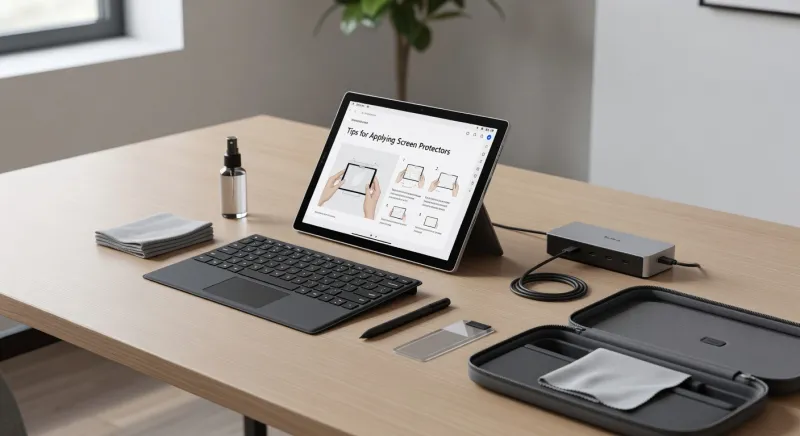
Tech enthusiasts often overlook the importance of clean hands during application. Wash hands thoroughly to avoid transferring oils or dirt to the screen. Avoid wearing fuzzy clothing that might shed fibers. Small details like these make a big difference in the outcome.
Gadget lovers know that patience is vital in this process. Rushing can lead to misaligned protectors or trapped dust specks. Take time to set up the workspace properly. A flawless application starts with a controlled, clean environment every time.
Step-by-Step Tips for Applying Screen Protectors
Applying a screen protector to a Microsoft Surface device requires precision and care. Start by powering off the device to avoid accidental touches. Clean the screen with a microfiber cloth to remove smudges and dust. Use an alcohol wipe if necessary for a spotless surface.
Next, peel off the backing of the protector partially, not entirely. Align it with the screen's edges or use provided alignment guides. Many protectors for Surface devices come with tabs for easier handling. Slowly lay it down from one end to the other.
Press gently in the center and work outward to push out air bubbles. Use a microfiber cloth or a plastic card for even pressure. If bubbles persist, lift a corner carefully and reapply that section. Avoid excessive lifting to prevent dust from sneaking underneath.
For Surface users, ensuring touch and pen accuracy post-application is essential. Test the screen after applying to confirm responsiveness. If issues arise, consult tips in the tips and tricks section. Following these tips for applying screen protectors ensures a perfect fit.
Common Mistakes to Avoid During Application
Even with the best tips for applying screen protectors, mistakes can happen without caution. One common error is failing to clean the screen adequately before starting. Dust or fingerprints trapped under the protector are nearly impossible to remove. Always double-check the screen's cleanliness before proceeding.
Another frequent issue is misalignment during placement on Surface devices. Rushing to apply the protector often leads to crooked edges. This not only looks unprofessional but can also leave parts of the screen exposed. Take time to align it perfectly before pressing down.
Tech enthusiasts sometimes ignore the importance of a dust-free environment. Applying a protector in a dusty room invites specks under the film. These imperfections can frustrate gadget lovers who value pristine displays. Always work in a controlled space to avoid this pitfall.
Lastly, using excessive force to remove bubbles can damage the protector. Press gently and methodically to smooth out imperfections. If problems persist, refer to expert advice on The Verge for tech solutions. Surface owners should prioritize patience over speed for best results.
Troubleshooting Issues After Application
Even with careful tips for applying screen protectors, issues can arise post-installation. Air bubbles are a common annoyance for Surface users after applying a protector. If small, they often disappear within a day or two. For stubborn ones, press gently with a cloth to push them out.
Misalignment is another concern that frustrates tech enthusiasts. If the protector is slightly off, it might not cover the entire screen. In minor cases, this may not affect functionality. For major misalignments, removal and reapplication might be necessary.
Gadget lovers often notice reduced touch sensitivity on their Surface devices. This can happen with low-quality protectors not designed for touchscreens. Test the screen and Surface Pen immediately after application. If issues persist, consider replacing it with a compatible option.
Scratches or peeling edges can also occur over time with heavy use. Inspect the protector regularly for signs of wear. Replacing it promptly prevents damage to the actual screen. Surface owners should keep spare protectors handy for quick fixes.
Frequently Asked Questions
How do I apply a screen protector without bubbles on my Surface?
Applying a screen protector without bubbles requires preparation and patience. Start by cleaning the Surface screen thoroughly with a microfiber cloth. Work in a dust-free area to avoid particles getting trapped. Use tips for applying screen protectors like aligning the protector carefully and pressing from the center outward. If bubbles appear, lift a corner gently and reapply. Take time to ensure a smooth finish for best results.
What is the best screen protector for Microsoft Surface devices?
Choosing the best screen protector depends on your specific Surface model and needs. Tempered glass protectors offer excellent drop protection and clarity. Look for options with anti-glare or anti-fingerprint features for added usability. Following tips for applying screen protectors ensures a perfect fit regardless of type. Check compatibility with touch and pen functions before buying. Always opt for reputable brands for quality assurance.
Can I reuse a screen protector after removing it?
Reusing a screen protector is generally not recommended for Surface devices. Once removed, the adhesive loses its effectiveness and may not stick properly. Dust and debris can also accumulate on the sticky side during removal. This compromises the protector's ability to shield the screen. It's better to invest in a new one for optimal safety. Proper application techniques can prevent the need for frequent replacements.
How do I remove a screen protector from my Surface without damage?
Removing a screen protector from a Surface device requires gentle handling. Start by lifting a corner using a fingernail or plastic card. Peel it off slowly at a low angle to avoid residue. If adhesive remains, wipe the screen with a microfiber cloth and mild cleaner. Avoid using sharp tools that could scratch the display. Handle the process with care to keep the device intact.
Why does my Surface touch not work after applying a protector?
If touch functionality on your Surface fails after applying a protector, compatibility might be the issue. Some low-quality protectors interfere with touchscreen sensitivity or Surface Pen use. Test the screen immediately after application to identify problems early. Remove and replace it with a product designed for Surface models if needed. Check user reviews for feedback on touch performance. Consulting expert guides can also help resolve such issues.
Final Thoughts
Protecting a Microsoft Surface device with a screen protector is a smart move for any owner. This guide has covered essential tips for applying screen protectors with precision and care. From choosing the right product to troubleshooting common issues, Surface users now have the tools for success.
Tech enthusiasts and gadget lovers can elevate their device care with these actionable steps. A flawless application preserves the stunning display and functionality of Surface devices. Explore more insights in the Surface accessories category for additional protective gear.
Take action today by selecting a compatible protector and setting up a clean workspace. Patience and attention to detail will ensure a perfect fit. Keep your Surface looking and performing like new with these expert strategies.